
Creating your first vote !
Ready to build your very first vote? Great — let’s walk through it together.
Above this text, you’ll find a short video that shows the whole process from start to finish. Once you’ve watched it, you can follow along with the written steps below at your own pace. We’ve added screenshots and small highlights to make everything feel extra clear and comfortable.
Getting Started
You can begin creating a vote in two ways:
by clicking Create Your Own Vote right in the center of the home page, or
by choosing Create from the sidebar on the left.
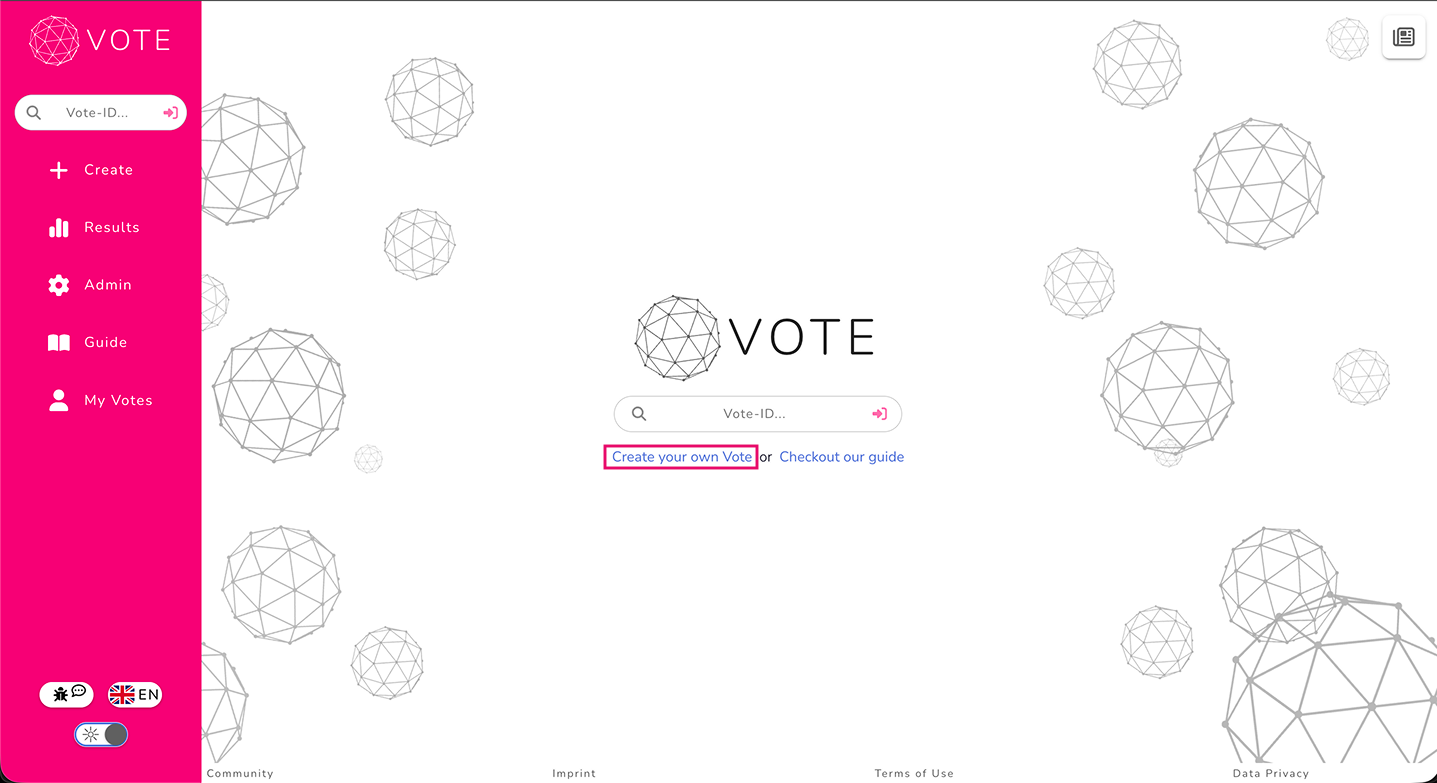
Either option takes you to the creation screen, where you’ll see four ways to start:
Quick Create – perfect for a simple, single-question vote.
Start From Scratch – the full creation flow with every feature available.
Upload a Template – use a saved template file (we cover templates later in the guide).
Copy From a Vote – recreate an existing vote using its ID.
For this guide, we’ll choose Start From Scratch, since it gives you the complete experience and helps you get comfortable with everything Vote offers.
Picking Your Vote Format
Next, you’ll choose between two formats:
Interactive – a real-time, engaging vote participants join immediately.
Survey – a response-collecting format people can fill out over time.
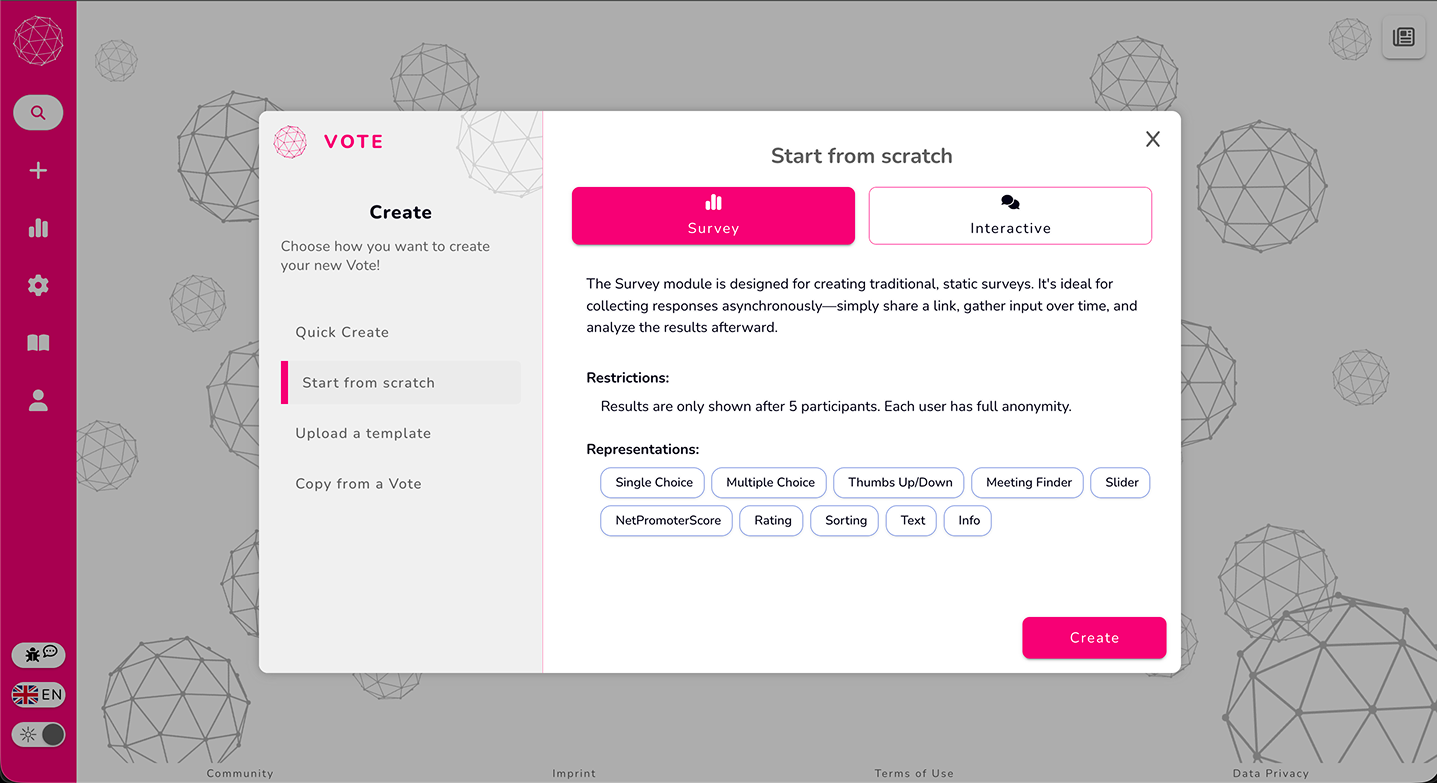
For now, let’s go with Survey, then click Create Vote.
A Quick Tour of the Creation Page
Before adding content, here’s a quick look at the layout — it’ll help you understand what’s where:
Top tabs (1): General → Add Questions → Finalize
You’ll move through these left to right as you build your vote.Left side (2):
On the General tab, this area shows your vote modules.
When you start adding questions, this same section becomes your block navigator.Middle area (3):
This is where you edit everything — your questions, titles, modules, and layouts.Right side (4):
You’ll see extra settings and helpful tools depending on what you’re configuring.
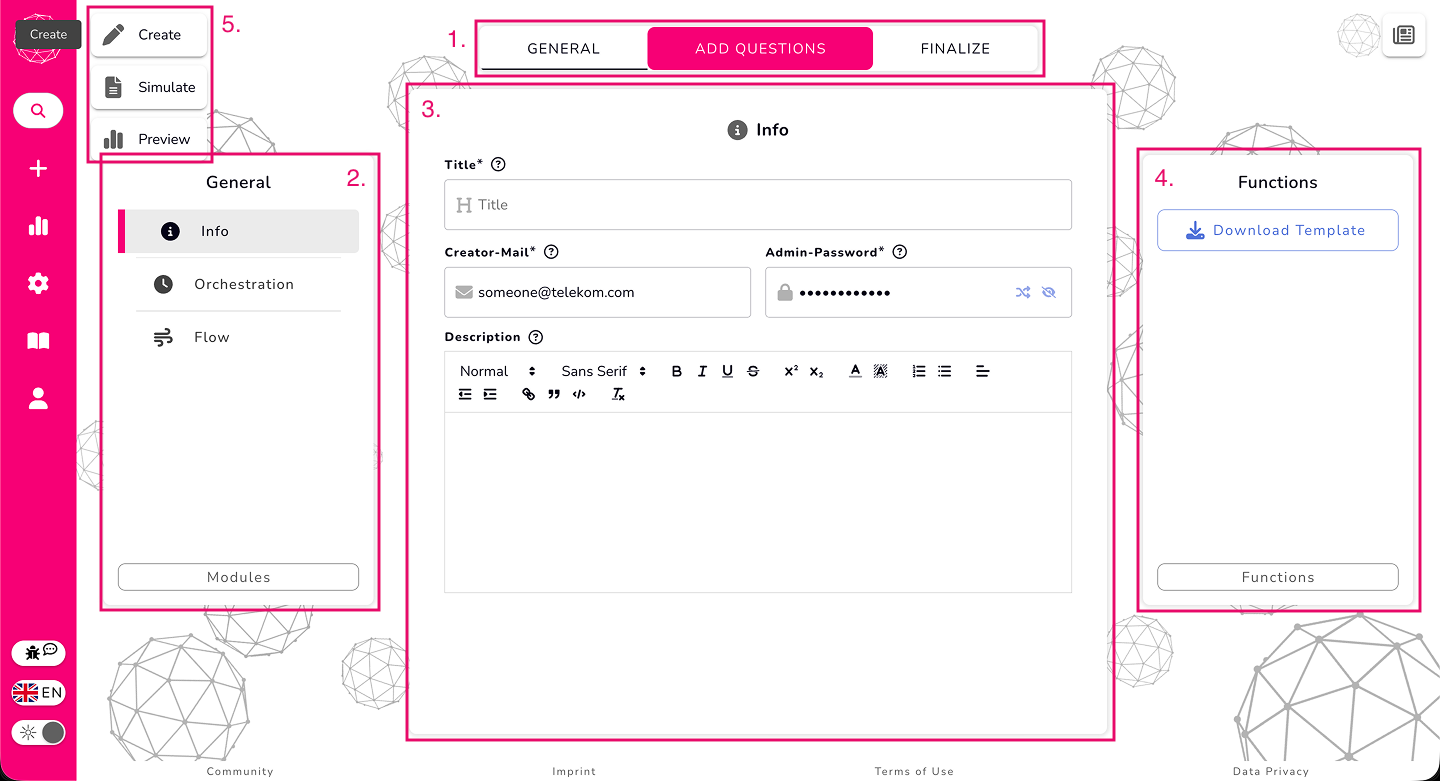
There’s also a small switch (5) in the top-left corner that lets you preview the participation view and results view. It’s a great way to double-check what your vote will look like before you publish it.
Building Your Vote
Let’s create the actual content now.
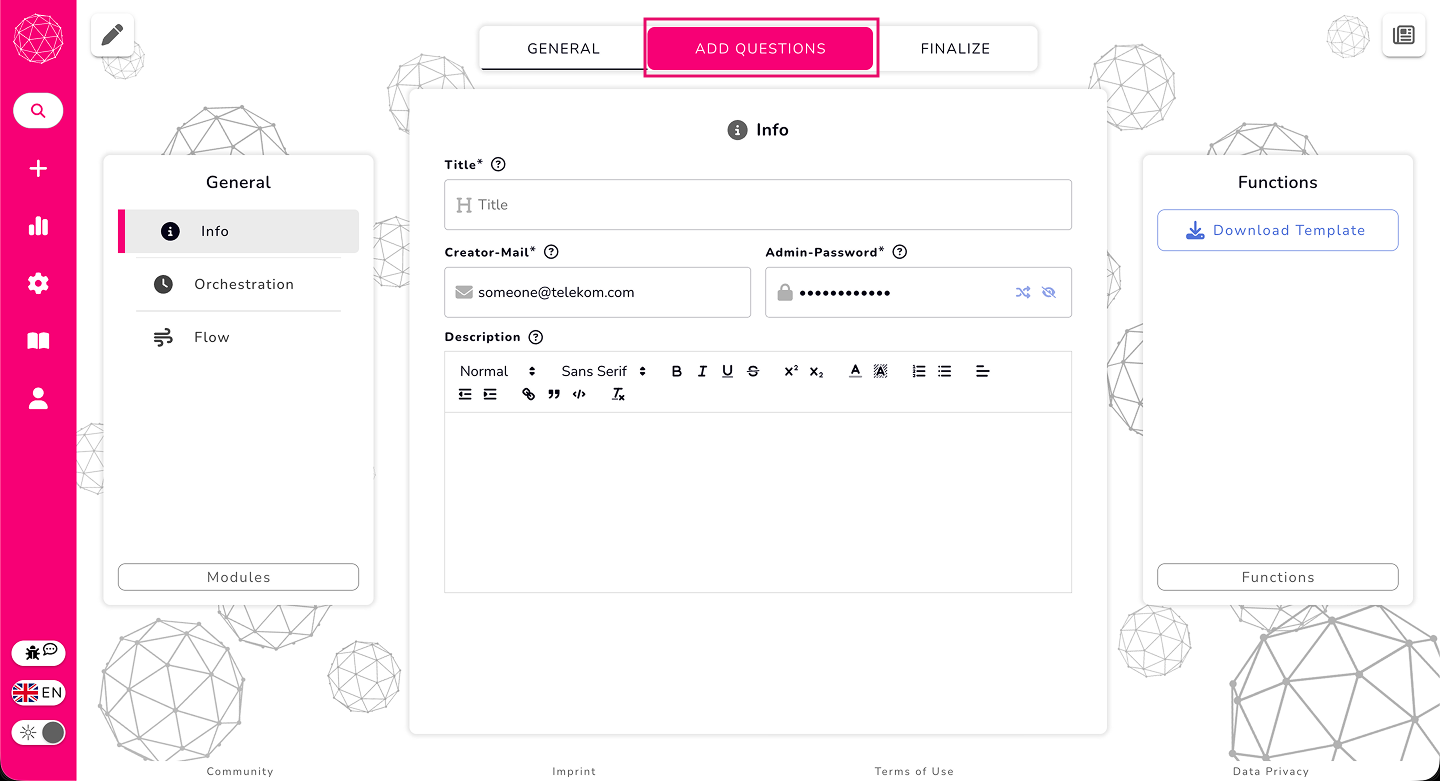
- Go to Add Questions and create a new block.
Blocks are groups of related questions that appear together for participants.
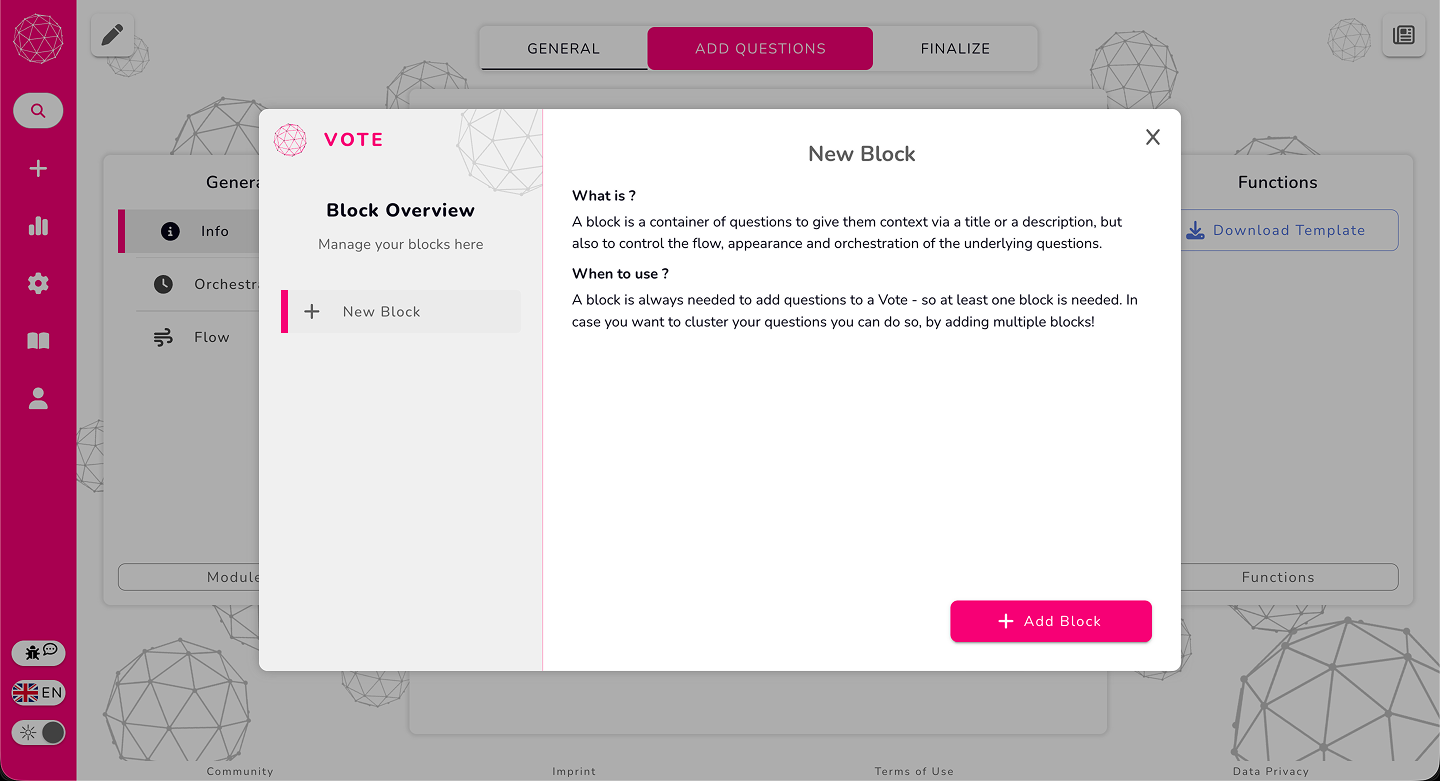
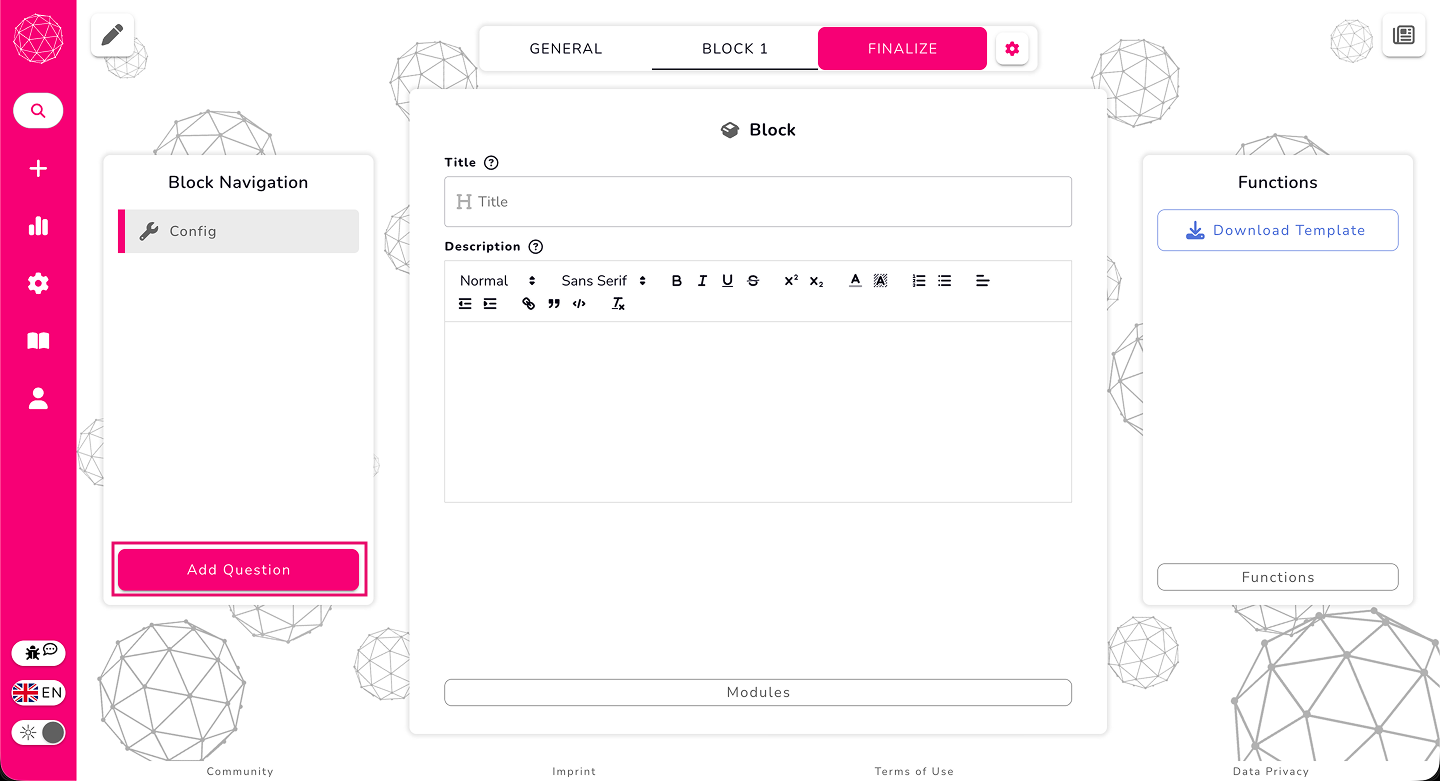
Once you add a block, the left side of the page switches from modules to block navigation.
Here you can see all the questions inside that block and move between them.Click Add Question.
You’ll see a list of all available question types.
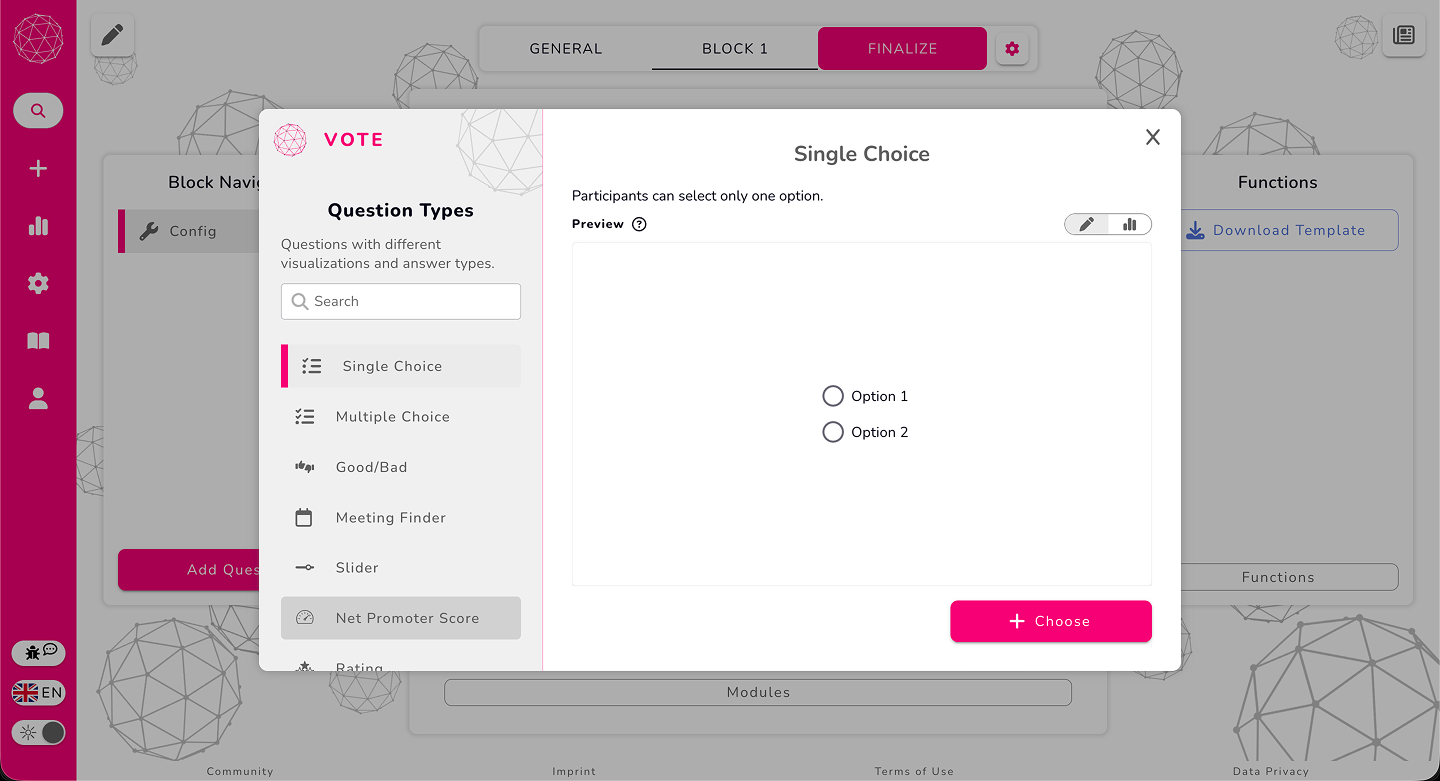
Let’s add our first question:
Choose Single Choice
Enter your question
Add the answer options
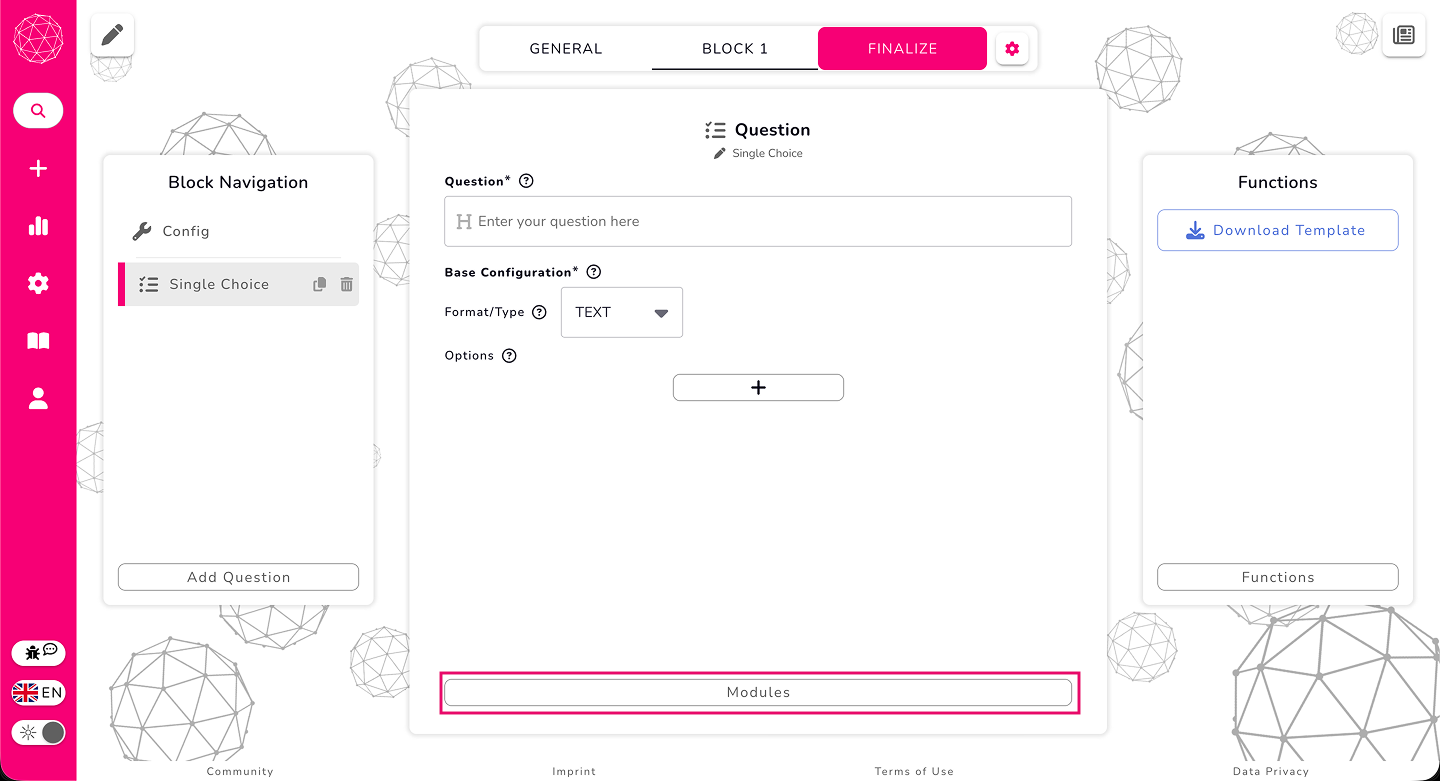
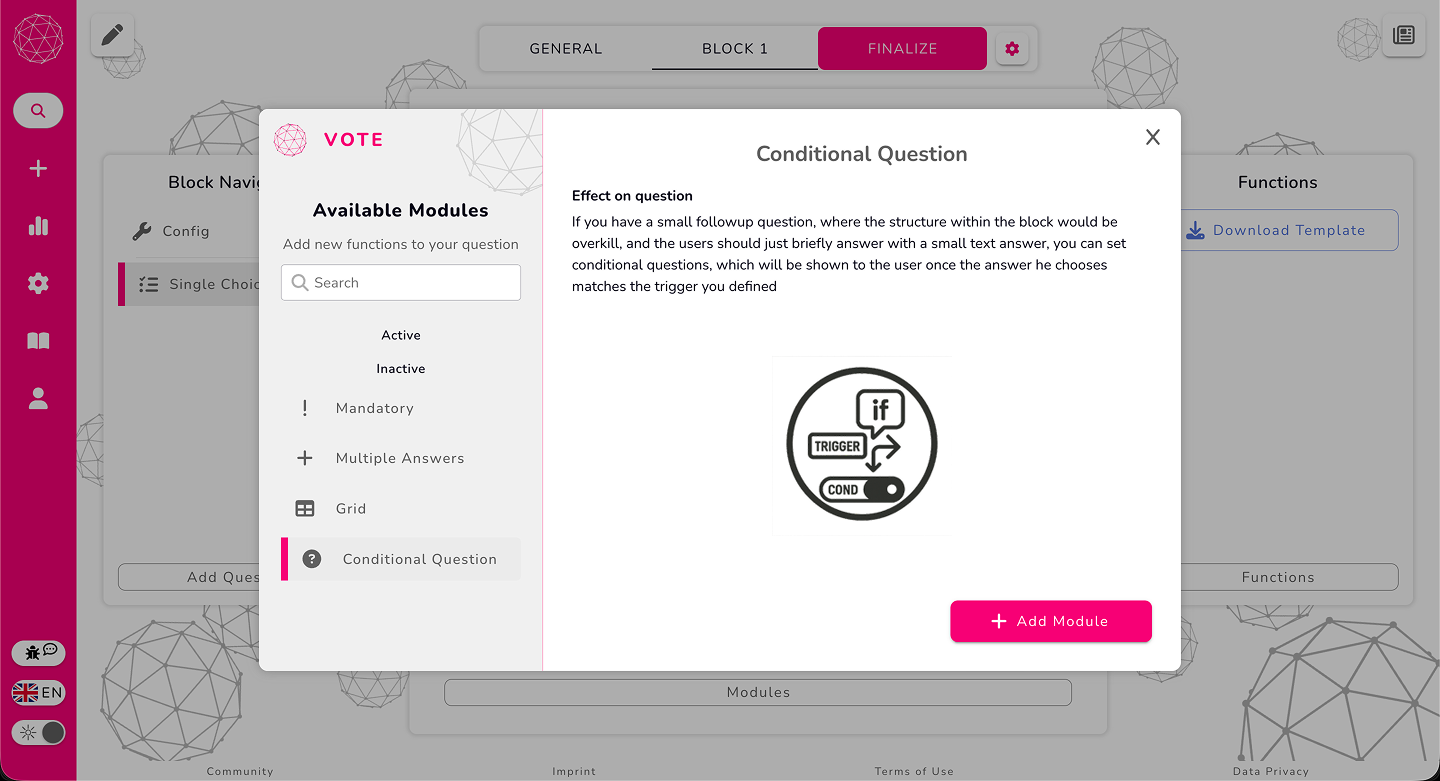
If you want to make the question react to participants' choices, open the Modules section at the bottom and add a conditional question module. Here you can choose which answer triggers the follow-up question and set its text.
Now let’s add one more:
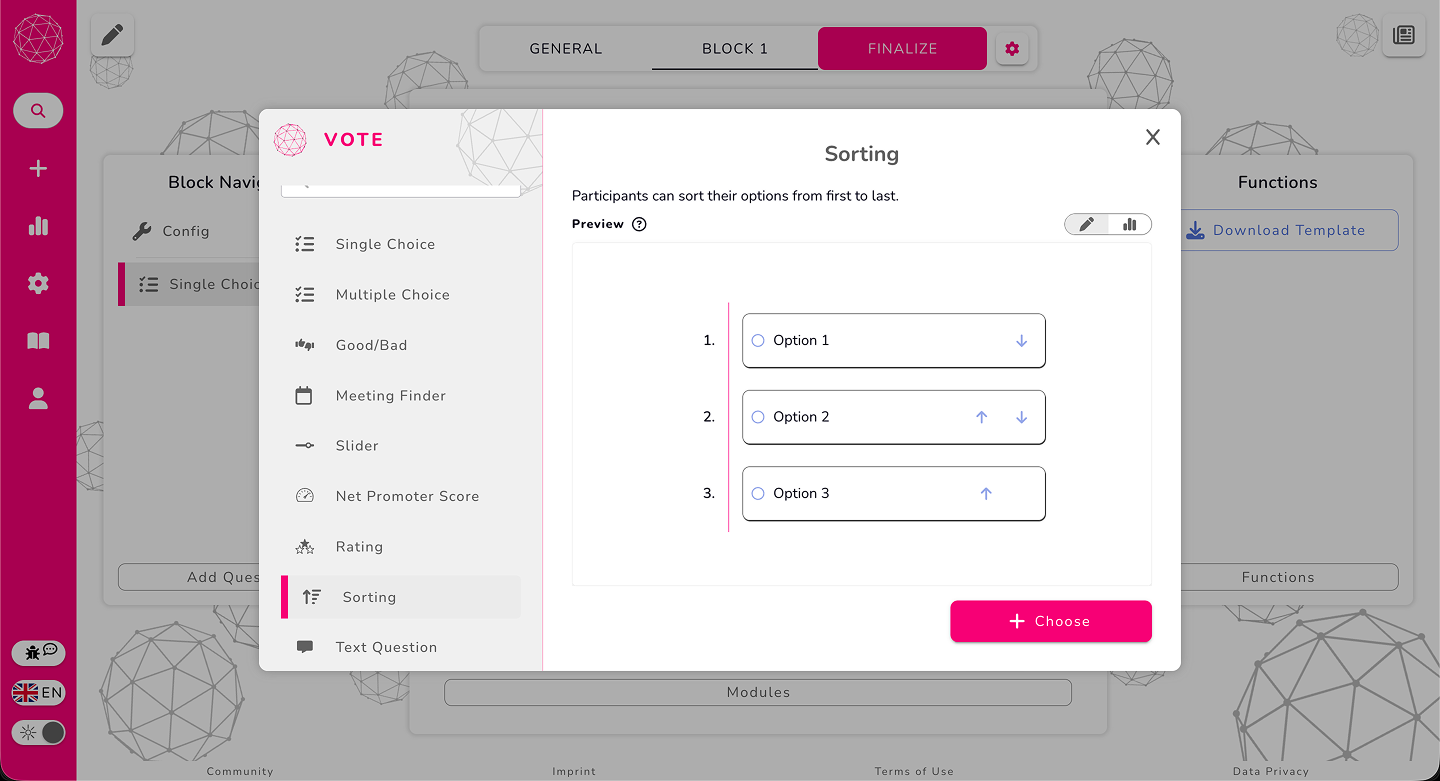
Click Add Question again
This time pick Sorting — a new type in Vote2Rebooted that lets participants rank items
Add a title and the options people should sort
Finalizing and Creating
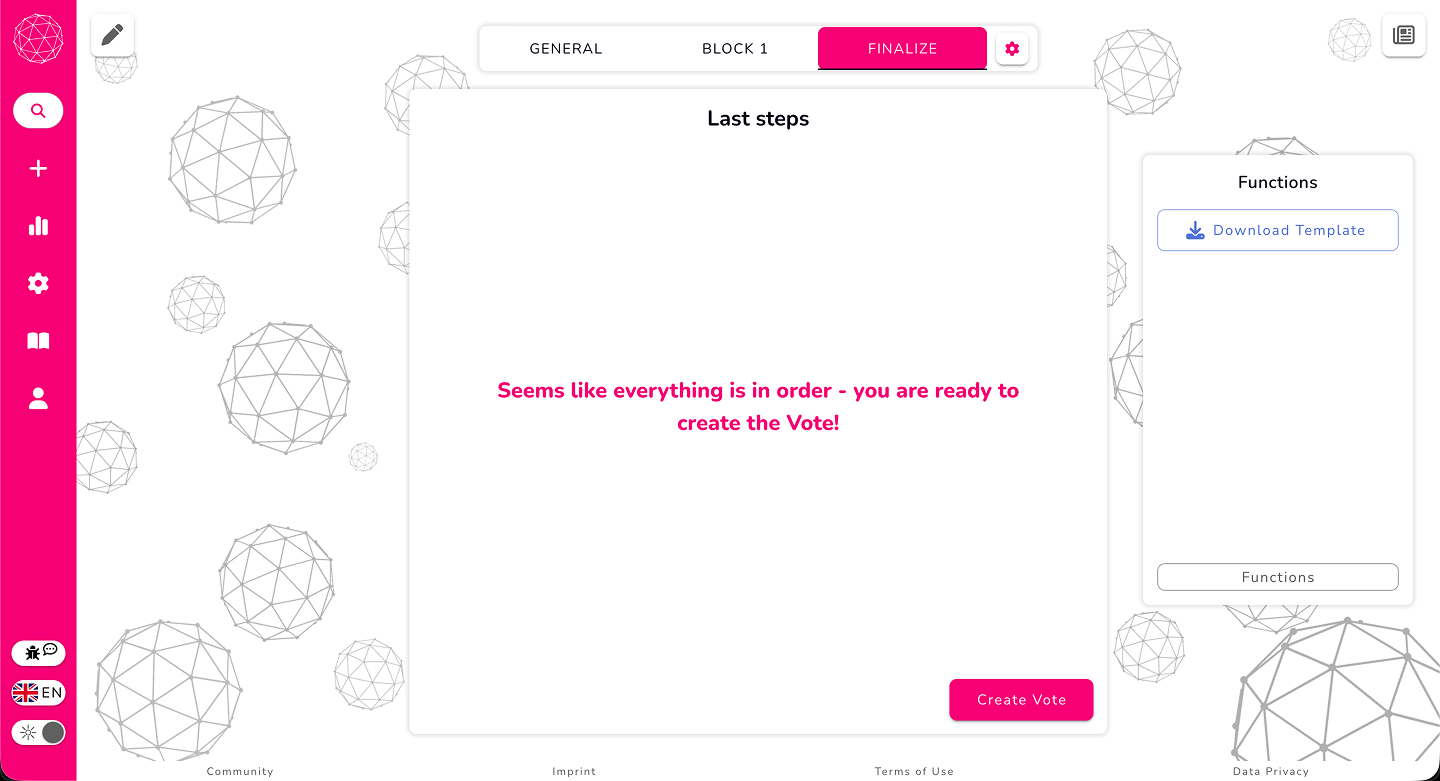
When your questions are ready, go to the Finalize tab.
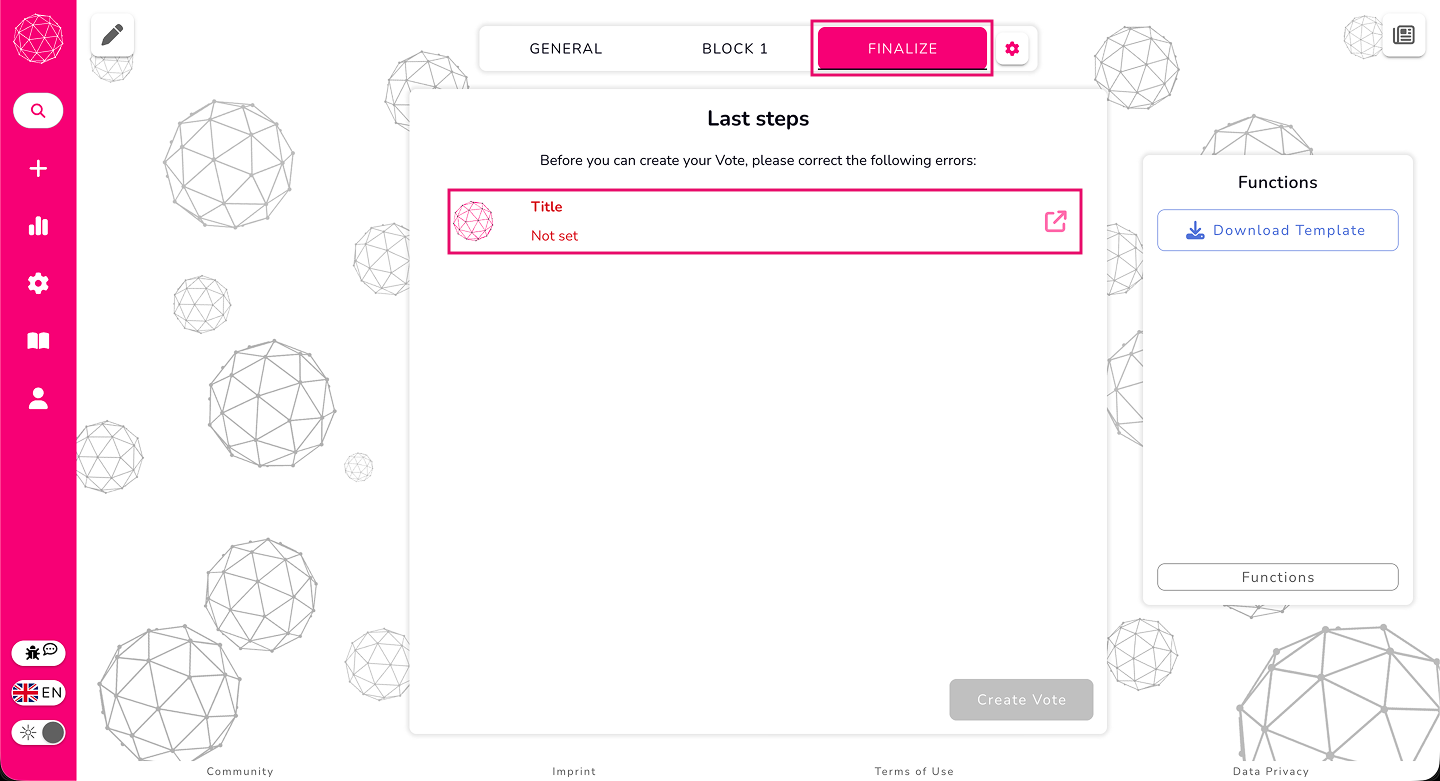
If something important is missing — like the vote title — Finalize will clearly show you what needs attention. Clicking the arrow next to an issue takes you right to where you can fix it.
Add your missing title, check that everything looks good, and then click Create Vote.
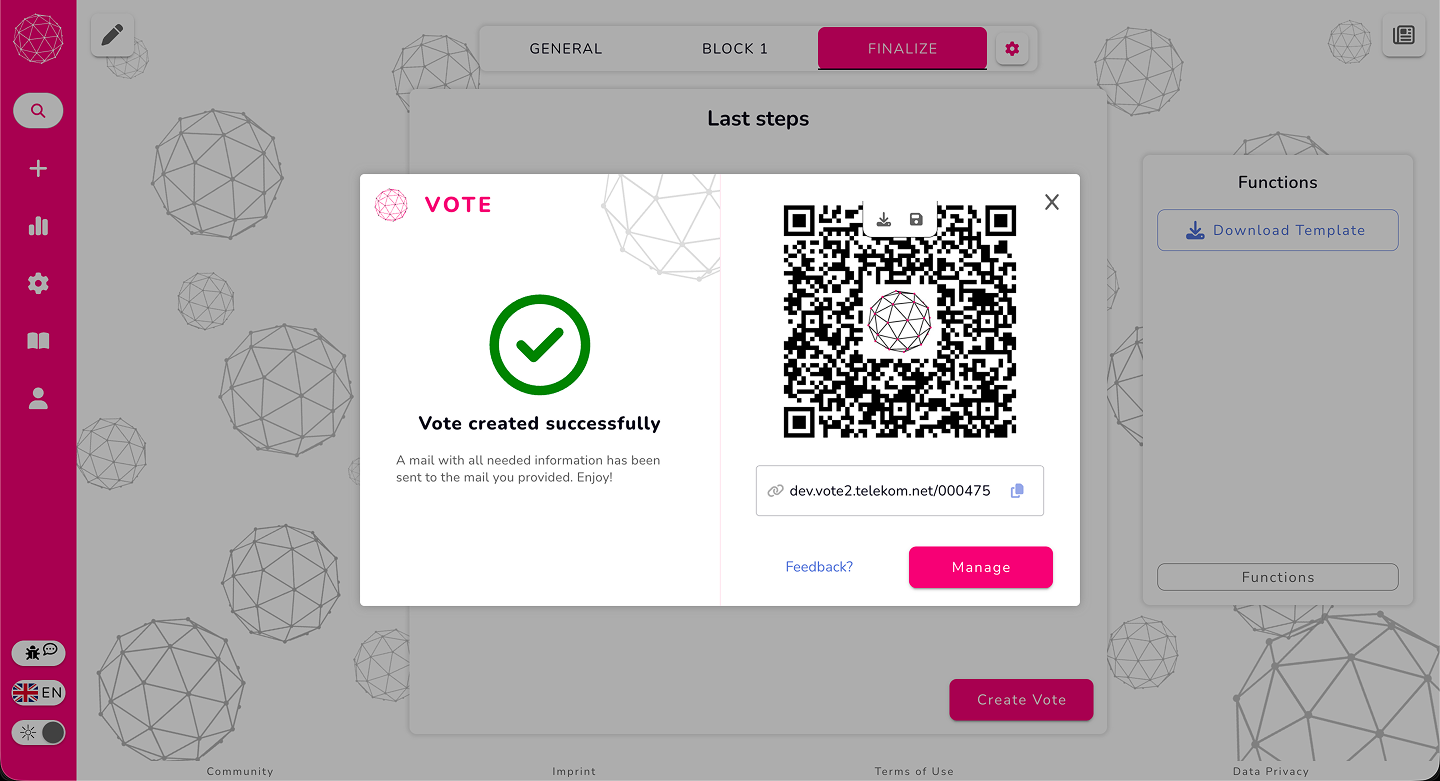
Once your vote is created, you’ll see a shareable link and a QR code you can pass along to your participants. You’ll also receive an email with the link so you can find your vote again anytime.