

Manage
The Manage page is where you can oversee and configure votes you’ve already created. You can access this page either by pressing the Admin button in the sidebar and entering the Vote ID and Admin password, or directly from your Dashboard.
Layout
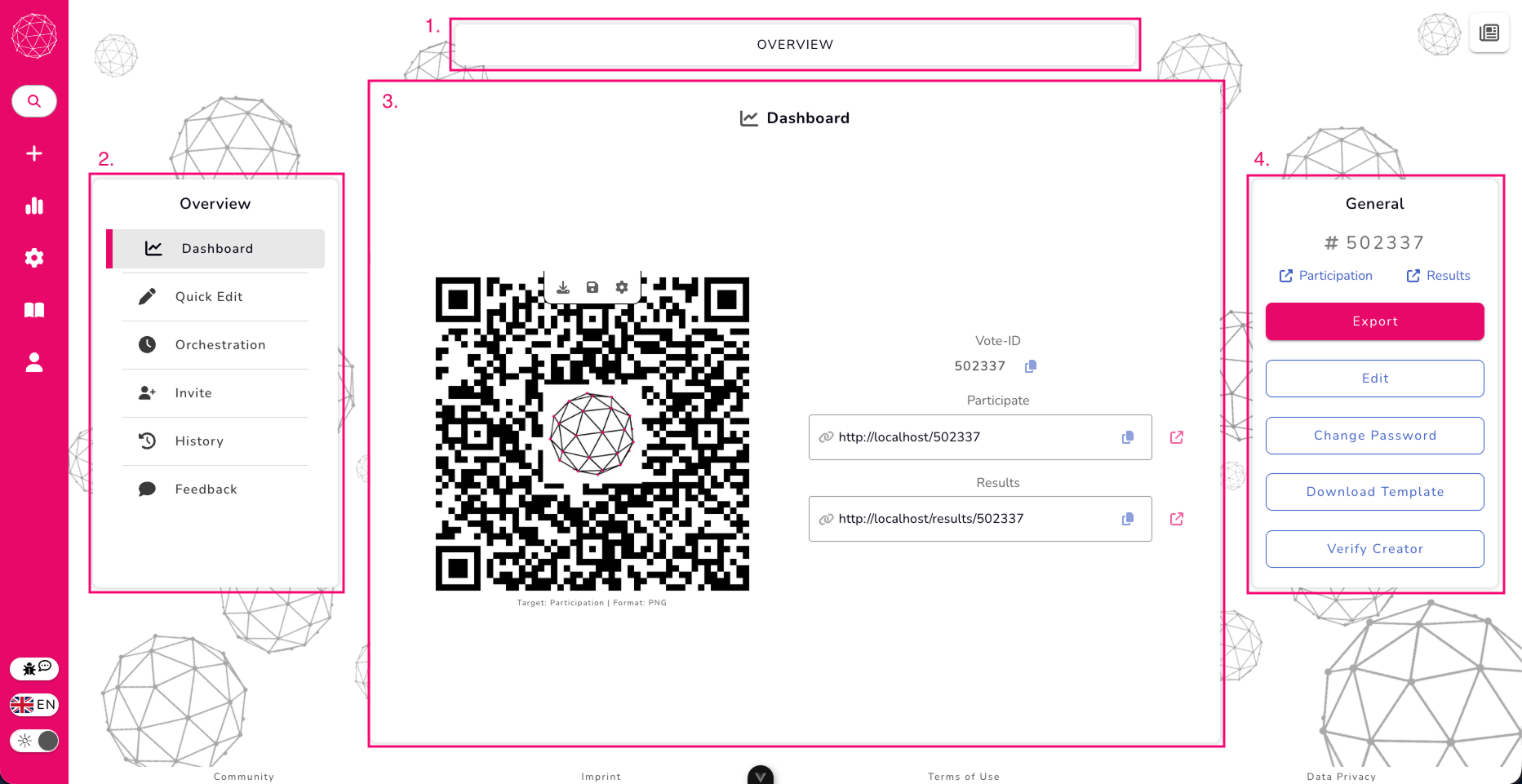
The layout of the Manage page is consistent with other pages in Vote. At the top, you have the top navigation bar (1), which currently shows the Overview tab. The page is divided into three main areas: the left pane(2), middle pane(3), and right pane(4).
Left Pane
The left pane in the Manage view is your navigation hub for all the settings and tools connected to your vote. Each item in this list opens a dedicated section in the middle pane, so you can review or update different parts of your vote whenever you need. Here’s what each section helps you do:
Dashboard
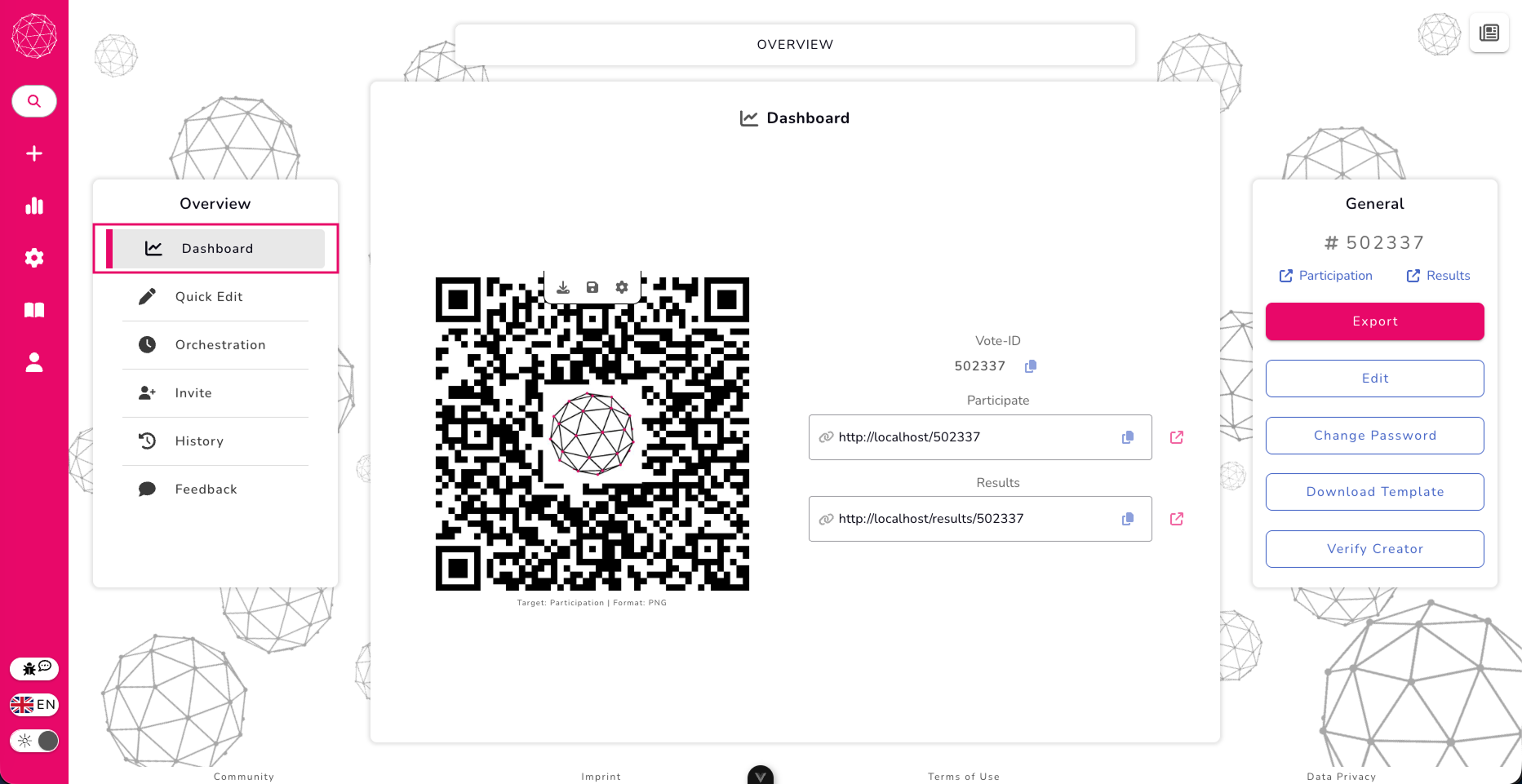
The Dashboard section gives you a compact overview of the most essential vote details — the kinds of things you often need to share quickly. Here you’ll find the Vote ID, the participation link, the results link, and even a QR code that participants can scan to join the vote instantly.
Quick Edit
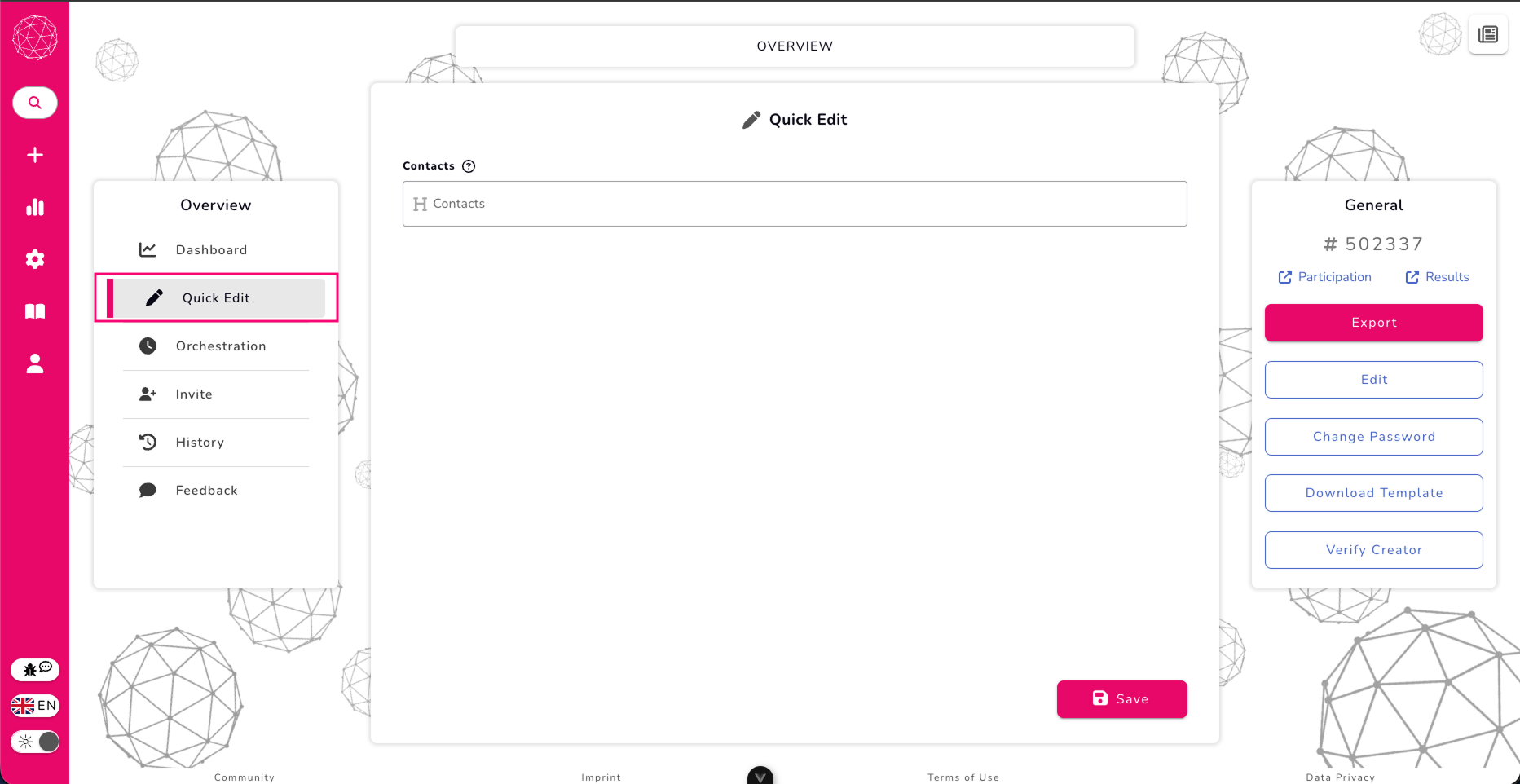
Quick Edit shows you all the settings you can safely modify without deleting any answers that have already been submitted.
Because some changes would fundamentally alter the structure or meaning of the vote, certain edits require all submitted answers to be reset. To protect your data, we separate the settings into two groups — and Quick Edit highlights only the ones that are safe to adjust at any time.
If you see a setting here, it means you can update it freely without triggering a reset of existing responses.
Orchestration
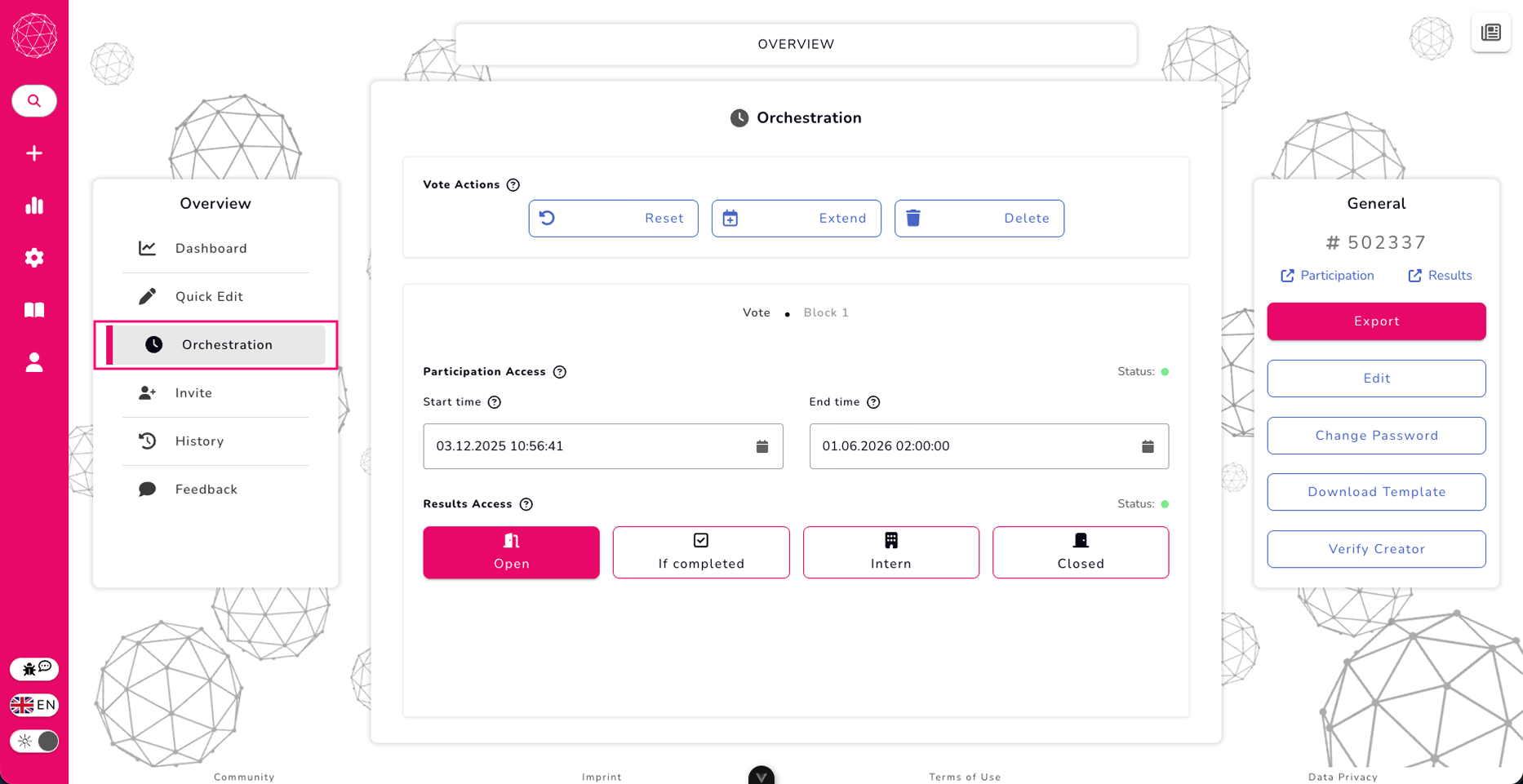
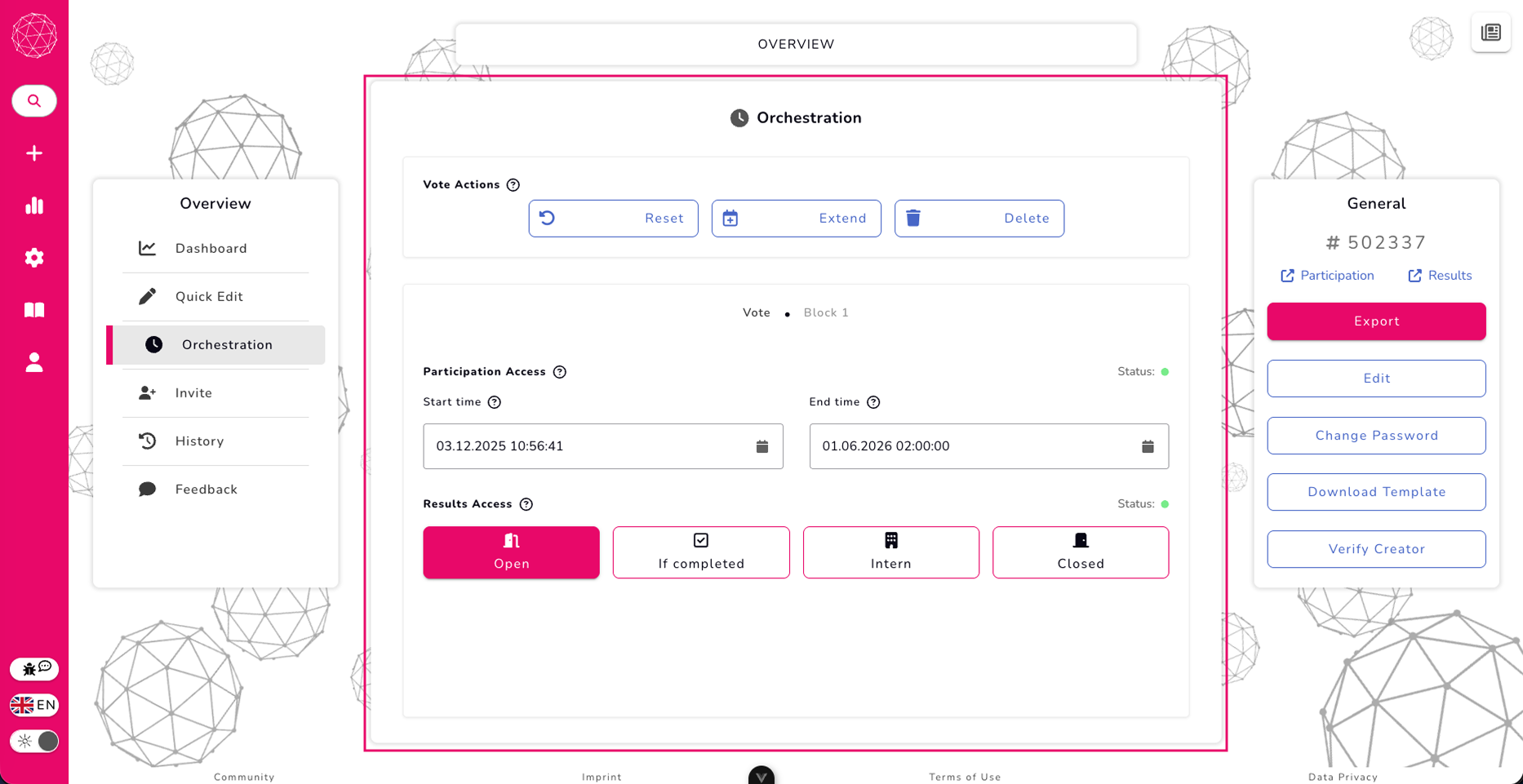
This is your control center for when and how your vote is accessible. In Orchestration, you’ll see the participation status (open or closed), the start time, end time, and the results visibility state. From here, you can control the vote’s timing, availability, and how results should behave over the course of the vote.
Invite
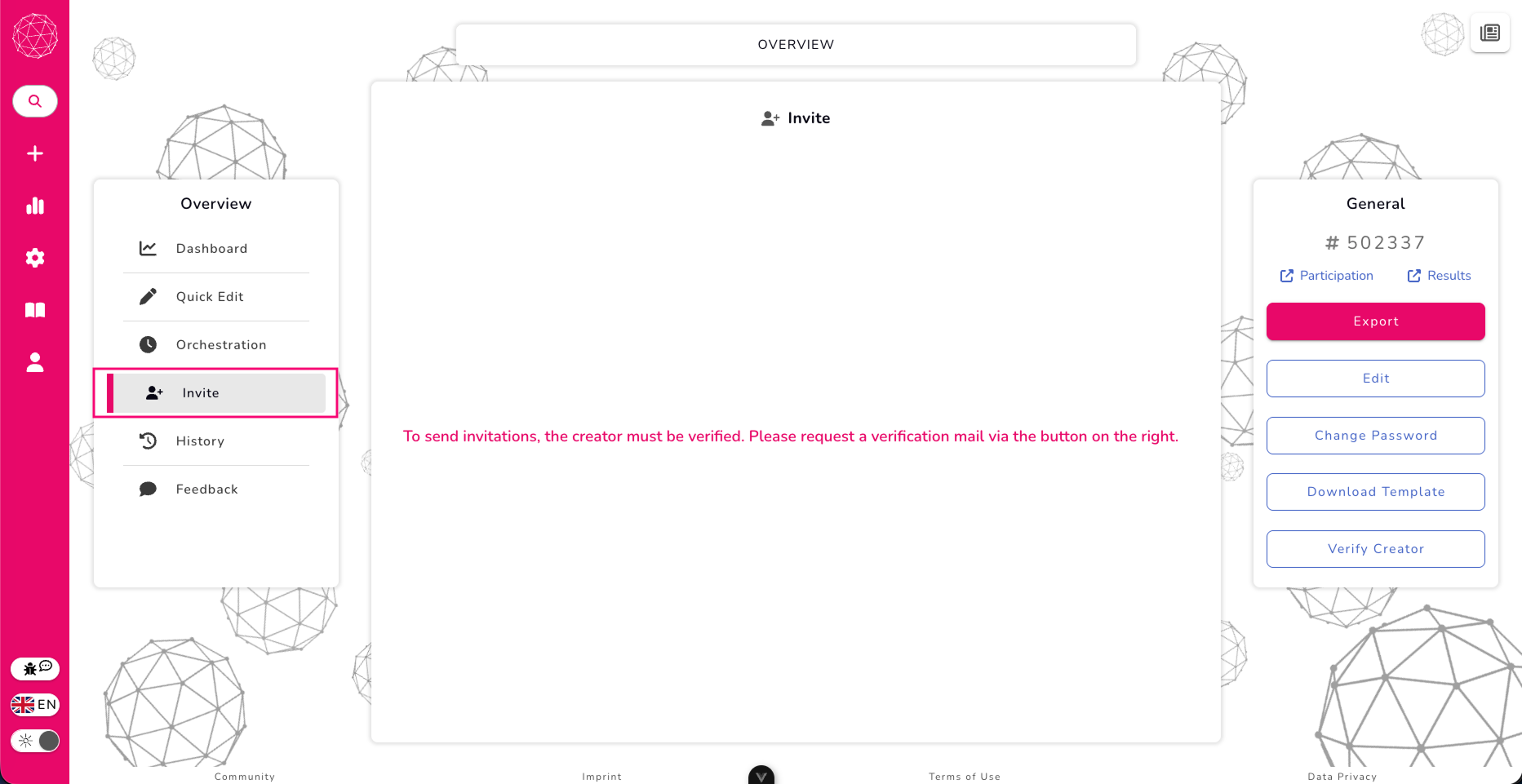
If you want to send invitations directly through the system, the Invite section has you covered. If the creator of the vote hasn’t been verified yet, you’ll see a reminder here — and a button to request a verification email. Once verified, this section lets you easily send out invitations by email.
History
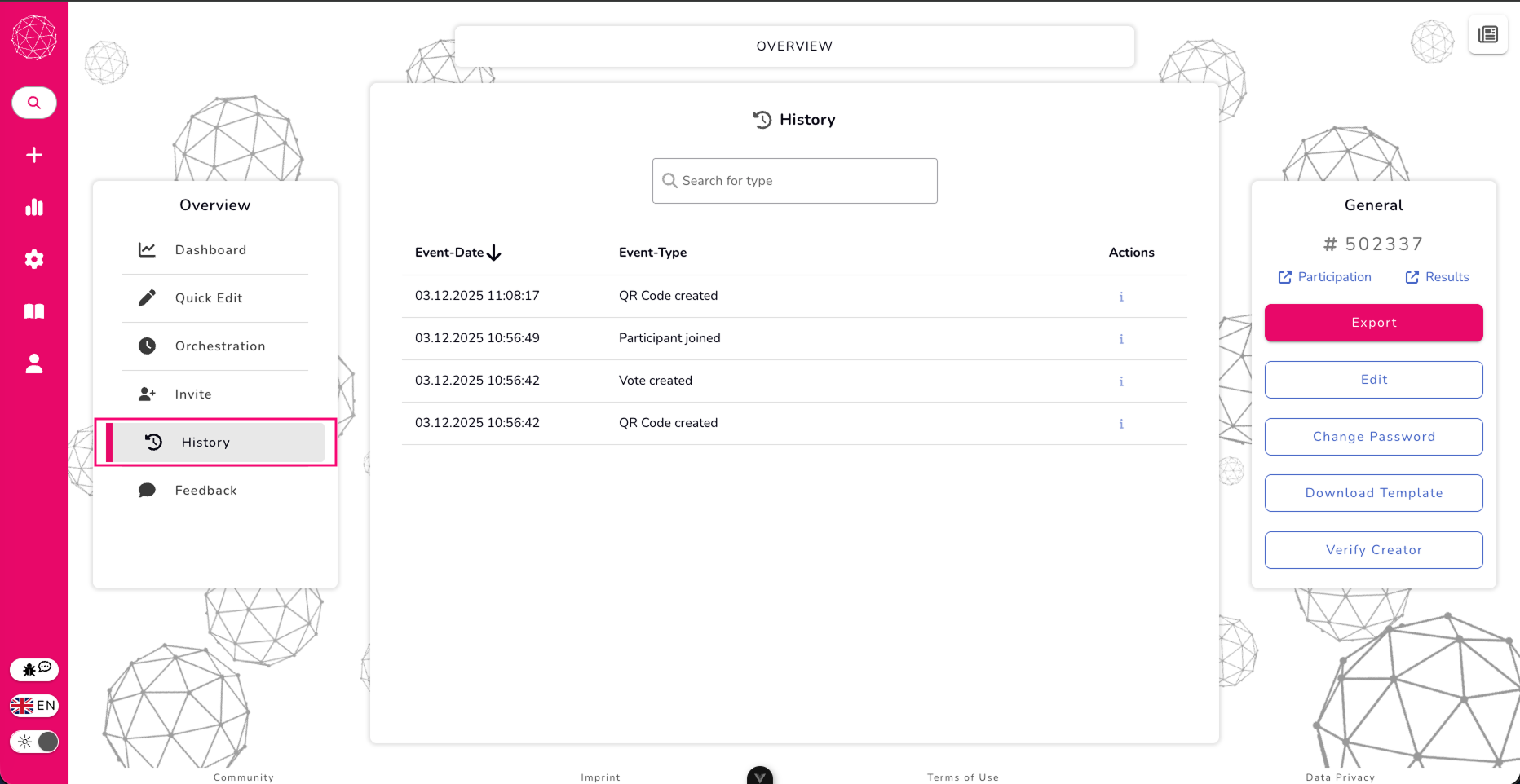
History gives you a clear timeline of everything that has happened with your vote. You’ll see entries about creation, edits, QR code generation, participant activity, and more. It’s a handy way to trace what happened and when.
Feedback
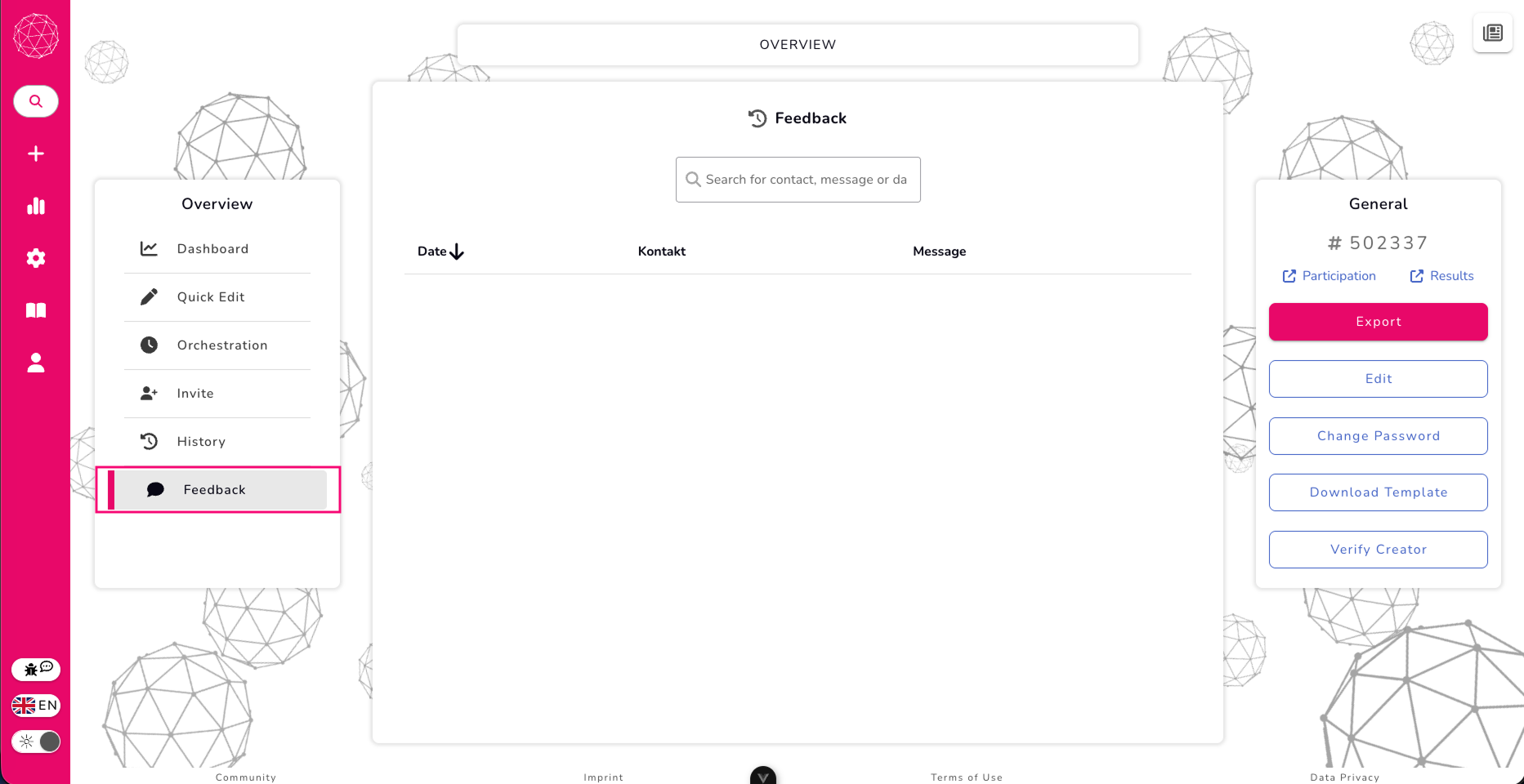
This section lets you browse through any feedback or messages participants have submitted. You can filter by contact, message content, or date, making it easy to find exactly what you’re looking for.
Middle Pane
The middle pane displays the detailed settings for whichever topic is selected on the left. For example, if you select the Orchestration topic on the left, all the related settings for orchestration appear in the middle pane, ready for review or editing.
Right Pane
The right pane provides a list of quick actions related to the vote, giving you fast access to common administrative tasks.
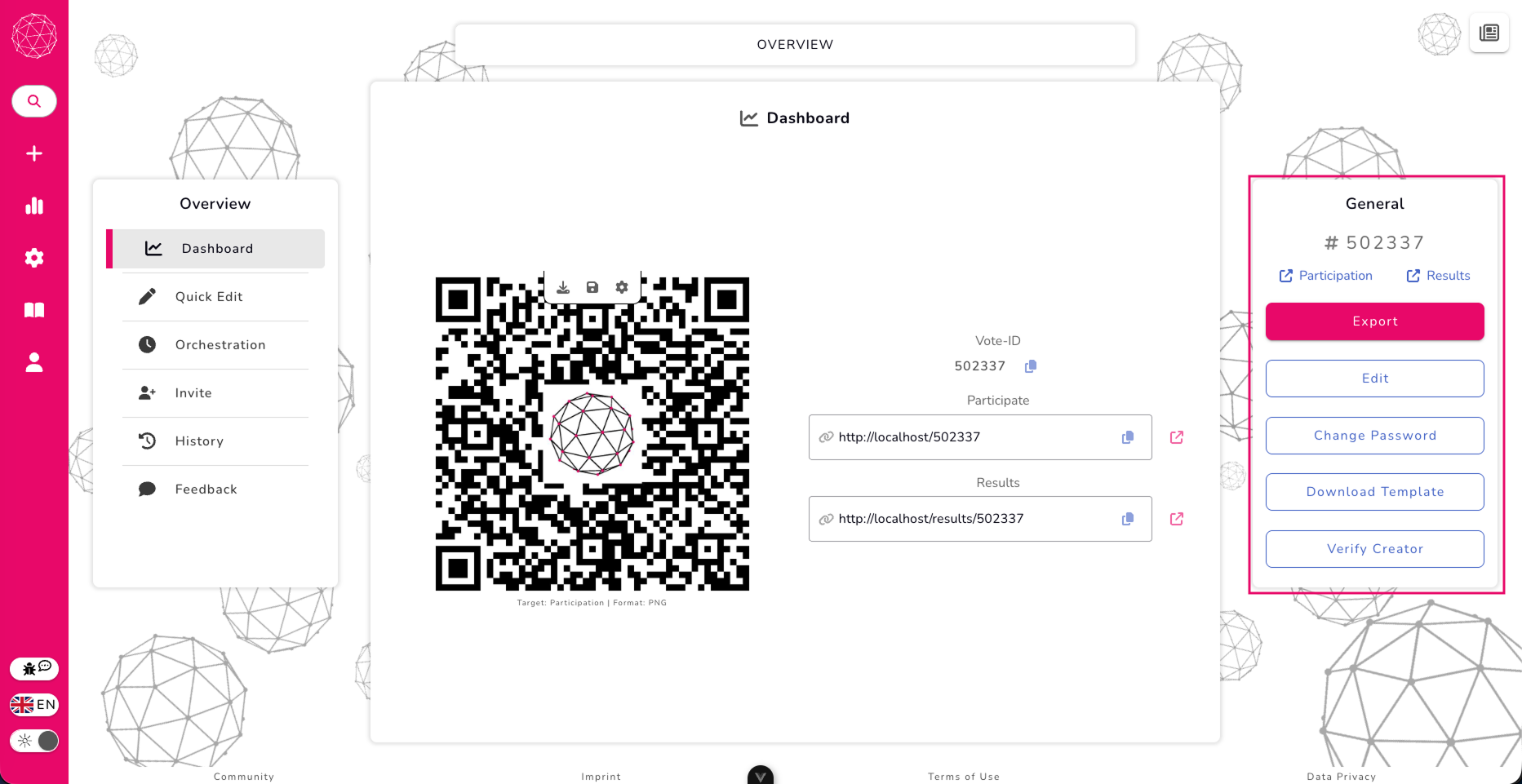
The right pane in the Manage page gives you a set of quick actions for the selected vote, organized from top to bottom:
Vote ID – Displays the unique identifier of the vote so you can reference it easily.
Participate / Results – Quick links that take you directly to the vote’s participation page or its results page.
Export – Sends the vote results via email so you can keep a backup or share them with others.
Edit – Redirects you to the vote’s Create page, allowing you to modify any part of the vote.
Change Password – Lets you update the admin password for this vote, keeping access secure.
Download Template – Exports the vote as a JSON file, which can later be used to upload a template when creating a new vote.
Verify Creator – Sends an email verification to confirm the creator of the vote.
This pane provides fast access to all the core administrative tools, making it easy to manage your vote without having to navigate away from the page.